 Captions and PDFs
Captions, subtitles and transcripts: what's the difference?
Last reviewed
Quick take
- Captions are words on the video, in the same language as the speech.
- Subtitles are words on the video, translated into another language.
- A transcript is a separate page of text.
- Automatic captions are a start. A person must check them.
Three words that get mixed up
People use these terms loosely. The W3C pins them down. It uses "captions" for text in the same language as the spoken audio. It uses "subtitles" for speech translated into another language.[1] In some regions, people say "subtitles" for both.
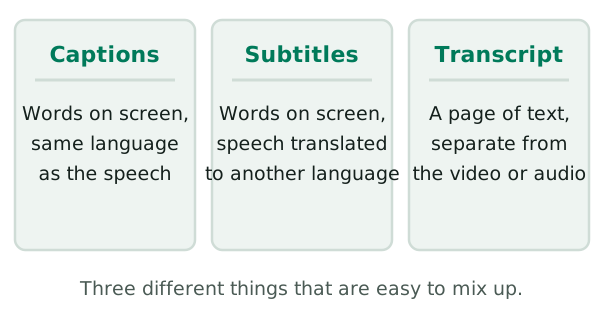
Captions do more than copy the words. They are a text version of the speech and of the other sounds needed to understand the content.[1] A door slam, a phone ringing or laughter can matter. Say who is speaking when it isn't obvious.[2]
Transcripts
A transcript is the same information as plain text on a page. A basic transcript covers speech and important sounds.[3] A descriptive transcript adds what is shown on screen. People who are both Deaf and blind need the descriptive kind.[3]
Transcripts also reach people who read braille.[4] A transcript is not a replacement for captions. The W3C says it's best to provide captions and a separate transcript.[4]
Which one does your media need?
It depends on what you publish. For a recorded podcast with no picture, the standard asks for a transcript.[3] For a recorded video with speech, it asks for captions.[1]
You'll find the full list on the checking video and audio page. Pictures that carry meaning need a different fix, covered in when a video needs audio description.
What a caption file looks like
Captions live in a small text file next to the video. The most common format on the web is WebVTT.[1] Each caption has a start time, an end time and the words.
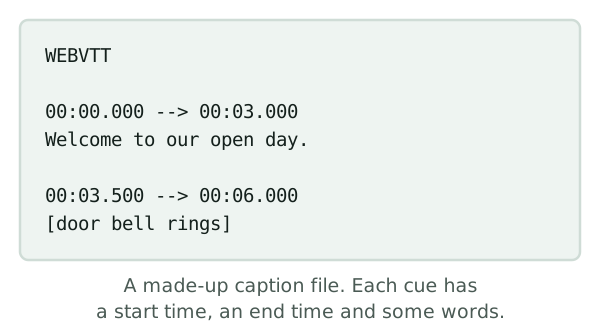
You rarely type this by hand. Captioning tools write the file for you. You supply or fix the words.
Why automatic captions need checking
Many video sites make captions for you with speech recognition. That's useful as a first draft. But the W3C says automatic captions don't meet user needs or accessibility requirements unless someone confirms they are fully accurate.[1]
The danger is a small slip with a big effect. One missed word can make the captions say the opposite of the audio.[1]
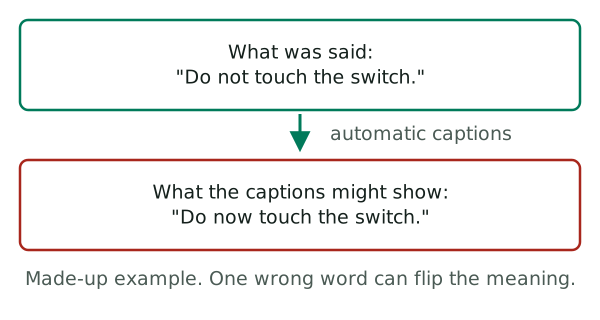
So read every automatic caption against the sound. Don't change or add to what was said.[2] Fix the errors and leave the speaker's words alone.
One text, two uses
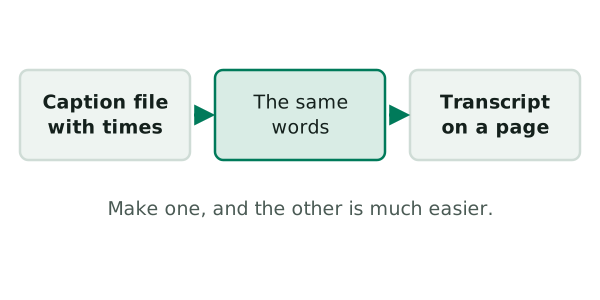
Captions and transcripts use the same words, so one can help you make the other.[1]
Sources
- Captions/Subtitles, W3C Web Accessibility Initiative (accessed 2026-11-10)
- Transcribing Audio to Text, W3C Web Accessibility Initiative (accessed 2026-11-10)
- Transcripts, W3C Web Accessibility Initiative (accessed 2026-11-10)
- Planning Audio and Video Media, W3C Web Accessibility Initiative (accessed 2026-11-10)