 Captions and PDFs
Building Word files that turn into good PDFs
Last reviewed
Quick take
- A PDF made from Word is only as good as the Word file.
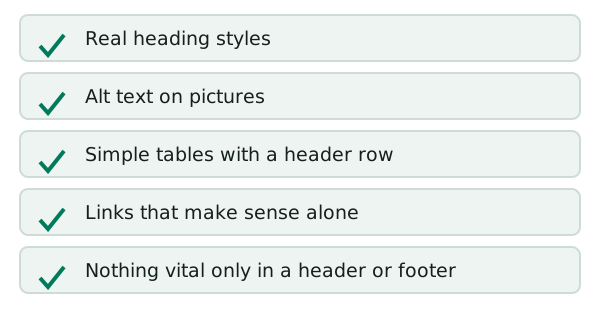
- Use the built-in Heading styles, not big bold text.
- Add alt text to pictures. Keep tables simple.
- Run the Accessibility Checker before you export.
Why the Word file matters
When you export a Word file as a tagged PDF, the program reads your document's structure and turns it into tags. Microsoft says it uses what the Accessibility Checker found to create the accessibility tags.[1] So the cleaner the Word file, the better the tags.
Use real headings
Make a heading by picking a style from the Styles gallery, such as Heading 1 or Heading 2. Don't just make a line bigger and bolder. That only changes how it looks.
Microsoft advises using built-in headings and styles.[2] It also says a logical heading order and Word's own formatting tools help screen readers read the document.[2] Logical order means no jumping from Heading 1 straight to Heading 4.

Real headings also feed the bookmarks you read about in making a PDF accessible.
Describe pictures
Alt text is a short written description of a picture. Screen readers read it out. It helps people who can't see the screen understand what matters in an image.[2]
A chart of last year's sales, for example, needs alt text that says what the chart shows. A purely decorative border does not need a description.
Keep tables simple
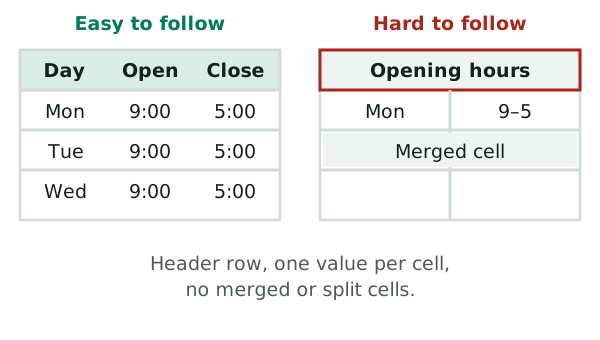
Screen readers find their place in a table by counting cells.[2] A merged or split cell throws off the count. So Microsoft says: if you must use a table, keep it simple. Hold data only, and mark the header row.[2]
Links, color and headers
- Links. People who use screen readers sometimes scan a list of links.[2] "Read our opening hours" works. "Click here" doesn't.
- Color. Don't let color be the only way you show something.[2] "Overdue items are in red" leaves some readers behind. Add the word "Overdue".
- Headers and footers. Screen readers don't scan the Header and Footer areas, so people miss what's there.[2] Put the vital facts in the main text.
Run the checker
The Accessibility Checker is a tool in Word that flags problems and explains each one.[2] To start it yourself, choose Review, then Check Accessibility.[2] Fix what it lists. Then export.
Slide decks have their own traps. See slides that convert well.
Sources
- Create accessible PDFs, Microsoft Support (accessed 2026-11-10)
- Make your Word documents accessible to people with disabilities, Microsoft Support (accessed 2026-11-10)